Key Takeaways: Dataverse vs SQL Server
- Power Apps licensing is similar: Both options require Power Apps Premium or pay-as-you-go.
- Dataverse storage costs more: Extra database capacity costs $40/GB/month, compared with about $0.115/GB/month for Azure SQL storage.
- SQL needs more development: Your team manages application security, auditing, APIs, and integrations.
- Your app requirements matter: Dynamics 365, model-driven apps, Power Pages, and Copilot Studio favor Dataverse.
- Hybrid works for growing systems: Use Dataverse for business processes, SQL for heavy workloads, and Fabric for reporting.
| Option | Choose it when |
| Dataverse | Your app runs business processes within Power Platform or Dynamics 365. |
| SQL Server or Azure SQL | You need database control, heavy queries, or an existing SQL system of record. |
| Both | You need governed business data alongside high-volume SQL workloads. |
| SharePoint lists | You manage small, simple lists without complex permissions or relationships. |
Power Apps teams often move toward SQL Server expecting lower licensing costs, only to discover that the savings aren’t there. The SQL Server connector is premium, so it still requires Power Apps Premium for every canvas app user, while storage, security, and development add to the overall cost.
The Dataverse vs SQL Server decision depends on how your application uses data. Dataverse as your app data layer makes sense for business processes built around Power Apps, Power Automate, and Dynamics 365. SQL Server or Azure SQL is a better fit for complex queries, greater database control, and existing SQL systems.
In this guide, you’ll learn:
- How Dataverse and SQL Server differ across 14 comparison criteria
- How licensing, storage capacity, and development costs compare
- What a three-year cost breakdown looks like for a 150-user app
- How security, performance, Copilot, and Microsoft Fabric affect your decision
- When to use Dataverse, SQL Server, or both, including migration considerations
By the end of this guide, you’ll understand which data layer fits your application, what it could cost over three years, and where each option makes the most sense.
What Are Dataverse and SQL Server, Really?
In the Dataverse vs SQL Server comparison, Dataverse is a managed business data platform, while SQL Server is a database engine that requires a separate application layer.
What Is Microsoft Dataverse?
Microsoft describes Dataverse as a platform for securely storing business data. It includes tables, relationships, security roles, business rules, auditing, and APIs. Power Apps, Power Automate, Power Pages, and Dynamics 365 use the same data platform, making integration easier with Power Apps development.
What Is SQL Server, and Where Does Azure SQL Fit?
SQL Server runs on-premises or on virtual machines, where your team manages servers, backups, and updates. Azure SQL Database handles infrastructure, patching, and backups, while Azure SQL Managed Instance offers closer compatibility with on-premises SQL Server. All three still require a separate application layer, security setup, and API development.
Is Dataverse Just SQL Server Under the Hood?
No. Dataverse runs on managed Azure services, so you don’t manage its underlying database. Its read-only SQL endpoint supports queries and reporting, but not table creation, stored procedures, or data updates.
Dataverse vs SQL Server: The Side-by-Side Comparison
Licensing, storage, security, and app requirements reveal where each platform fits. Here’s how they compare across the key criteria.
| Criterion | Dataverse | SQL Server or Azure SQL |
| What it is | Managed business data platform with built-in security, logic, and APIs | Relational database engine managed by your team or hosted on Azure |
| Power Apps licensing | Requires Power Apps Premium, pay-as-you-go, or an eligible Dynamics 365 license | Requires Power Apps Premium or pay-as-you-go because the SQL connector is premium |
| Starting price | Power Apps Premium: $20/user/month, moving to $22 for new terms from January 1, 2027 | Same Power Apps license, plus SQL Server licensing or about $368/month for a small Azure SQL database |
| Storage | 250 MB database and 2 GB file capacity per Premium license; extra database capacity costs $40/GB/month | No included storage; Azure SQL storage costs about $0.115/GB/month |
| Data model | Tables, typed columns, choices, lookups and relationships | Relational schemas, keys, constraints, views and stored procedures |
| Security | Built-in roles, business units, teams, sharing and column-level security | Database security features, with application-level permissions built by your team |
| Auditing | Built-in table and column history, using log capacity | SQL Server Audit or temporal tables, configured and maintained by your team |
| App support | Canvas apps, model-driven apps and Power Pages | Canvas apps through the connector; model-driven apps through virtual tables |
| Power Automate | Native triggers and actions for Dataverse rows | Premium connector, with a gateway for on-premises data |
| Dynamics 365 | Native platform integration | Requires integration or virtual tables |
| Copilot and agents | Dataverse knowledge sources and MCP server use existing security | Requires a premium connector or custom API and a separate permission model |
| Analytics | Connects to Microsoft Fabric through Link to Fabric without traditional ETL | Azure SQL Database can mirror data into Fabric; other setups may need pipelines |
| Performance | Subject to request allocations and service protection limits | Depends on purchased compute and database tuning |
| Best fit and skills | Governed business apps managed by Power Platform administrators and solution architects | Custom, high-volume, or existing SQL systems, supported by DBAs and developers |
The Dataverse vs SQL Server trade-off comes down to control versus built-in functionality. Dataverse provides the application layer and governance, while SQL Server offers more database control but leaves more development and maintenance work to your team.
Which Costs Less? Licensing, Capacity, and the Work You Pay For
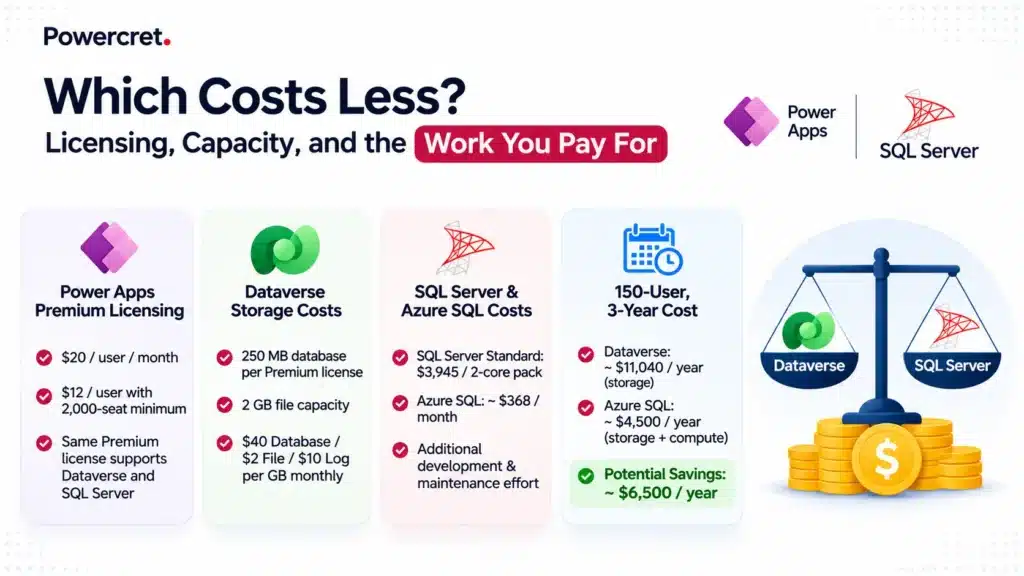
The Dataverse vs SQL Server cost difference comes down to storage and development, not Power Apps licensing. Both require premium licensing, but SQL Server adds more work for your development team.
1. Power Apps on SQL Server Still Needs Power Apps Premium
The SQL Server connector is premium, so every canvas app user needs Power Apps Premium. It costs $20 per user per month, or $12 with a 2,000-seat minimum. New purchases and renewals move to $22 and $14 from January 1, 2027, as Microsoft announced. The same license includes Dataverse access, while pay-as-you-go costs $10 per active user per app for either data layer.
2. What Dataverse Capacity Includes and What Extra Storage Costs
Each Power Apps Premium license adds 250 MB of database and 2 GB of file capacity to the shared tenant pool. Dynamics 365 Enterprise apps start with 30 GB of database capacity plus 250 MB per user, according to the Dynamics 365 Licensing Guide.
Extra Dataverse capacity costs per GB per month under the Power Platform Licensing Guide:
- Database: $40, or $30 with the Tier 2 add-on and 1,000 GB minimum.
- File: $2 for attachments and images.
- Log: $10 for audit history.
Test environments, attachments, audit records, and Fabric links can increase storage usage, so include them in your estimate.
3. What SQL Server and Azure SQL Cost Beyond the License
The SQL Server pricing datasheet lists Standard at $3,945 per 2-core pack, or $989 per server plus $230 per user or device client access license (CAL). Enterprise costs $15,123 per 2-core pack, while Express is free for databases up to 50 GB.
Hardware, Windows Server, and an on-premises gateway add to the cost. A 2 vCore General Purpose Azure SQL Database in the East US costs about $368/month, with storage at about $0.115 per GB. The Azure SQL Database free offer can help smaller workloads, but your team still handles application security, auditing, APIs, and release management.
4. A 3-Year Cost Example for a 150-User App
Consider a 150-user operations app with 60 GB of table data across production and test environments by year three. Assume the 150 Premium licenses add 37.5 GB of included database capacity (150 × 250 MB), and the tenant’s default capacity is already used by other apps.
| Cost line | Dataverse | Azure SQL Database |
| Power Apps Premium, 150 users | $36,000/year at $20, or $39,600 at $22 | Same license cost |
| Three-year license total | $108,000 to $118,800 | $108,000 to $118,800 |
| Database storage at 60 GB | About 23 GB extra = $920/month | 60 GB = about $7/month |
| Compute | Included | About $368/month |
| Storage and compute per year | About $11,040 | About $4,500 |
| Security, audit, API and pipeline | Built-in platform features | Built and maintained by your team |
Azure SQL saves roughly $6,500 per year on storage and compute at full size. However, the engineering cost of building and maintaining application features can reduce that saving.
All figures are USD list-price estimates, not quotes. Actual costs vary by region, currency, and agreement.
Need a cost estimate for your app? Start a Conversation about a Dataverse architecture review and three-year cost model.
Security and Governance: Built-in vs Built by You
Dataverse provides built-in application security, while SQL Server gives your team database-level controls to configure. When comparing Dataverse vs SQL Server, the real difference is how much security and governance work your team must manage.
Dataverse uses security roles, business units, teams, and record ownership to control access. It also supports column-level security for sensitive data and built-in auditing to track who changed what and when.
Governance extends beyond individual records. DLP policies control connector usage, while Managed Environments provide usage insights, sharing controls, and deployment pipelines. Teams can manage these through Power Platform governance and CoE setup.
SQL Server offers row-level security, column permissions, dynamic data masking, and Always Encrypted. However, Power Apps connections need careful configuration because shared SQL credentials can expose data beyond the intended user. Microsoft explains this risk in its SQL Server connection security guidance.
Microsoft Entra ID connections and server-side row-level security help control access, but your team must build and maintain them. Both platforms can support HIPAA, GDPR, and SOC 2 requirements, but compliance depends on how you configure and manage security controls.
Performance and Scale: Where Each Platform Hits Its Ceiling
Dataverse has request and service limits, while SQL Server offers more control over database performance. For Dataverse vs SQL Server performance, the right choice depends on your workload and how much maintenance your team can handle.
Dataverse Request Limits, Elastic Tables and Capacity
These Dataverse limitations matter most when apps handle heavy traffic or large datasets:
- Daily request allocations: Each Power Apps Premium user gets 40,000 requests per 24 hours. Per-app and pay-as-you-go users get 6,000.
- Service protection limits: Dataverse allows 6,000 requests, 20 minutes of combined execution time, and 52 concurrent requests per user per web server within five minutes. Poorly designed integrations can hit these limits.
- High-volume data: Elastic tables run on Azure Cosmos DB and can handle tens of millions of rows per hour. They lack multi-record transactions and business rules, making them better for logs and telemetry.
- Aging records: Long-term data retention keeps inactive records read-only, at about 50% less database capacity on average. It requires a Managed Environment.
SQL Server: Full Tuning Control, Full Responsibility
SQL Server handles heavy joins, large aggregations, and complex queries with indexes, partitioning, columnstore, and execution-plan tuning. Your team controls the compute and performance, but must also monitor workloads and fix queries that slow down as data grows.
Power Apps has limits regardless of the data layer. The SQL connector has payload and throttling limits, while canvas apps return only the first 500 rows for non-delegable queries by default. You can raise this limit to a maximum of 2,000, but delegation remains important for larger datasets.
Dynamics 365, Copilot and Fabric: Which Data Layer Your Stack Expects
Dataverse has a direct advantage when your apps rely on Dynamics 365, Copilot Studio, or Microsoft Fabric. This makes your existing Microsoft stack a deciding factor in Dataverse vs SQL Server.
1. Dynamics 365 Already Runs on Dataverse
Dynamics 365 Sales, Customer Service, Field Service, and Project Operations store their records in Dataverse. Custom tables can sit alongside accounts and cases, using the same security and permissions.
Dynamics 365 licenses also include Dataverse access and capacity within the licensed app’s environment, reducing the need for separate integration.
2. Copilot Studio and Agents Inherit Dataverse Security
Copilot Studio can use Dataverse tables as a knowledge source. In classic mode, an agent can use two Dataverse sources with up to 15 tables each; generative mode has no fixed limit. Agents respect existing user permissions.
The Dataverse MCP server lets Copilot Studio and other MCP clients access Dataverse data. Agents using these tools can consume Copilot Credits, which should be included in your budget.
SQL Server agents need a premium connector or custom API, plus a separate permission model built by your team. This adds development work and requires careful control over the data agents can access.
3. Reporting at Scale Belongs in Fabric, Not in Either Operational Store
Microsoft Fabric connects Dataverse tables to OneLake without traditional ETL pipelines. It requires Fabric capacity or a Power BI Premium license and increases Dataverse database storage, as explained in Microsoft’s Fabric link documentation.
For Azure SQL Database, mirroring into Fabric replicates tables into OneLake without Fabric compute charges for replication itself. Both options let Power BI report from a separate data copy instead of loading operational databases.
Also Read: 3 Things Every Client Underestimates in a Salesforce to Dynamics 365 Migration
Now that you’ve seen how each option fits Dynamics 365, Copilot, and Fabric, let’s take a look at which one your own app should use.
When to Choose Dataverse, SQL Server, or Both
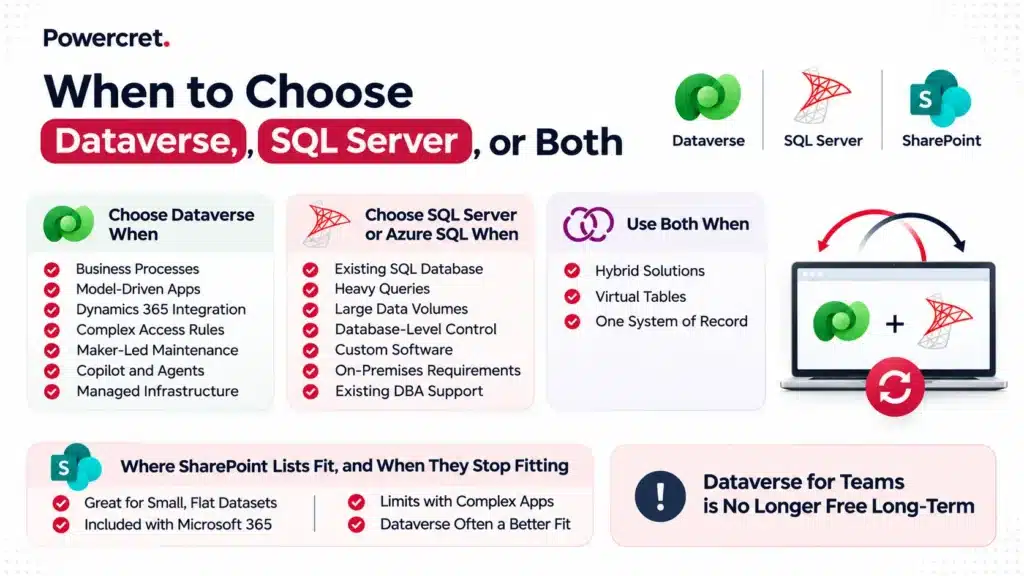
Match the data layer to the work your application needs to handle. Dataverse suits business processes, SQL Server handles custom and heavy workloads, and some solutions benefit from both.
Choose Dataverse When
Dataverse is a strong fit when your app runs business processes, needs built-in governance, or connects closely with the Power Platform.
- Business processes: Cases, inspections, approvals, and onboarding fit naturally into tables, forms, and flows.
- Model-driven apps or portals: Model-driven apps require Dataverse, and Power Pages uses the same business data.
- Dynamics 365 integration: Your records already live in Dataverse, avoiding duplicate customer data and extra sync jobs.
- Complex access rules: Security roles, business units, teams, and column-level security manage access without custom SQL logic.
- Maker-led maintenance: Business analysts can update forms, views, and rules in governed environments.
- Copilot and agents: Copilot Studio and the Dataverse MCP server can use data within its existing security model.
- Managed infrastructure: Microsoft handles backups, patching, and availability, reducing database administration.
Choose SQL Server or Azure SQL When
In the Dataverse vs SQL Server choice, SQL Server makes more sense when you need database control, support for demanding queries, or an existing SQL system of record.
- Existing SQL database: Connect Power Apps to it instead of copying data into another system.
- Heavy queries: Pricing engines, allocations, reconciliations, and batch jobs benefit from SQL’s query capabilities.
- Large data volumes: Hundreds of GBs of transaction data can cost less to store in Azure SQL than in Dataverse database capacity.
- Database-level control: Your engineers can manage indexing, isolation levels, stored procedures, and performance tuning.
- Custom software: Customer-facing and multi-tenant products benefit from a database the product team can control and deploy.
- On-premises requirements: SQL Server supports workloads that must remain on your own servers.
- Existing DBA support: Established monitoring, backup, and security processes reduce the overhead of running another SQL database.
Use Both When One Solution Spans Both Worlds
A hybrid setup is often the practical choice for Dataverse vs SQL Server. Keep business process data in Dataverse, existing or high-volume data in SQL, and use Fabric for reporting across both.
Virtual tables let Dataverse access SQL data without copying rows, with create, read, update, and delete support where the source allows it.
However, virtual tables don’t support auditing, field-level security, offline use, or charts, and access is configured per table rather than per record.
Keep one system of record for each entity. If both databases accept edits to the same customer record, you’ll need conflict rules and ongoing sync management.
Where SharePoint Lists Fit, and When They Stop Fitting
SharePoint lists work well for small, flat datasets such as reference data, simple trackers, and internal requests. They’re included with Microsoft 365 and use a standard connector, so there’s no extra connector cost.
Their limits become a problem when an app needs deeper relationships, row-level permissions, or proper application lifecycle management (ALM). At that point, the Dataverse vs SQL Server question usually comes up, and Dataverse is often the better fit for business apps.
Dataverse for Teams is no longer a free long-term alternative. Microsoft stops new Dataverse for Teams environments from November 15 and suspends environments that aren’t upgraded the following September.
Moving Between Them: What Migrates and What You Rebuild
In a Dataverse vs SQL Server migration, moving data is often the easy part. Rebuilding logic, security, and integrations takes most of the work.
CRM migrations need the same care. If you’re moving from Salesforce, review what clients underestimate in a Salesforce-to-Dynamics 365 migration before planning the data move.
1. SQL Server to Dataverse
Moving SQL Server data to Dataverse means reshaping the data model. Foreign keys become lookups, reference tables can become choices, and natural keys become alternate keys.
Stored procedures and triggers need new homes in plug-ins, Power Automate flows, or business rules. Database permissions must also be rebuilt using Dataverse security roles and business units.
Once the model is ready, use dataflows or Azure Data Factory to load the data. Virtual tables can also provide temporary access to SQL data without moving it.
2. Dataverse to SQL Server or Azure SQL
This move usually happens when an internal app grows into a product or data volume makes Dataverse capacity less practical. The challenge is replacing the platform features your app already relies on.
You’ll need to rebuild security, auditing, validation, and APIs, then reconnect every app and flow. Before migrating, check whether long-term retention or a Fabric copy can solve the storage problem instead.
8 Steps to Plan a Safe Migration
Follow these steps to reduce migration risks and avoid missing critical dependencies.
- Map tables and relationships: List every table, column, key, and relationship. Identify what moves, what needs restructuring, and what can be removed.
- Rebuild security: Document who can view and edit each record. Recreate those permissions through Dataverse roles or SQL and Microsoft Entra ID controls.
- Move business logic: Replace stored procedures, triggers, and rules with the right plug-ins, flows, or application logic. Test each change against real business scenarios.
- Track integrations and reports: List every flow, scheduled job, export, and Power BI report connected to the source. Update each dependency before cutover.
- Prepare environments and ALM: Set up development, test, and production environments, with solutions and deployment pipelines ready before migration.
- Migrate and reconcile data: Load reference data first, followed by master records and transactions. Compare row counts and key totals after every migration wave.
- Run both systems in parallel: Keep the old and new systems active during an agreed testing period. Compare outputs daily before switching users over.
- Plan cutover and support: Set the downtime window, rollback point, and task owners before go-live. Keep support available during the first few weeks to resolve issues quickly.
Also Read: How to Decide Whether to Rescue a Stalled Dynamics 365 Implementation
Now that you’ve seen what a move really involves, let’s take a look at the questions that help you avoid one.
Before You Commit: A 10-Question Decision Checklist
Before finalizing Dataverse vs SQL Server, review these questions with your app, IT, and finance teams. The answers will show whether Dataverse, SQL Server, or a hybrid setup fits best.
The 10 Questions to Answer With Your Team
- What will the app do? Business processes point to Dataverse, while custom products and backend services often suit SQL.
- Is Dynamics 365 live or planned? If yes, keep related business records in Dataverse.
- Do you need model-driven apps or Power Pages? Both rely on Dataverse.
- Does the data already live in SQL? Keep the existing system of record and connect Power Apps or use virtual tables.
- How much data will you have in three years? Hundreds of GBs may favor SQL, while smaller business datasets can fit Dataverse.
- How complex are your queries? Heavy joins, aggregations, and batch jobs favor SQL.
- How detailed are your access rules? Complex role, team, and column-level permissions favor Dataverse.
- Who will maintain the app? Makers and functional consultants often fit Dataverse, while DBAs and pro-code teams may prefer SQL.
- Will Copilot agents use the data? Dataverse can apply its existing security model to agent access.
- What does the three-year cost model show? Compare licensing, storage capacity, compute, and development effort, not just subscription prices.
5 Mistakes That Force a Rebuild Later
A poor Dataverse vs SQL Server choice often comes from overlooking the work behind the database. Avoid these five mistakes before committing:
- Choosing based on familiarity: Picking SQL because the team knows it can mean rebuilding security, auditing, and workflows that Dataverse already provides.
- Ignoring storage capacity: Licensing costs may look similar, but test environments, attachments, and audit logs can increase Dataverse capacity costs. Model storage for every environment.
- Treating Dataverse like a raw database: Poorly designed integrations and record-by-record API calls can hit request limits. Plan batching and API usage early.
- Running reports on live data: Heavy reporting can affect app performance. Use Microsoft Fabric for analytics and keep operational workloads separate.
- Skipping environment planning: Building directly in production makes releases risky. Set up development, test, and production environments with solutions and deployment pipelines.
If an implementation has already stalled, read how to decide whether to rescue a stalled Dynamics 365 implementation.
Also Read: What Our 98% Client Retention Rate Is Actually Built On
Why Choose Powercret for Your Power Platform Data Layer
The right Dataverse vs SQL Server setup needs more than a database decision. It needs the right data model, security, and architecture to support your apps as they grow.
Powercret is a certified Microsoft consulting and implementation partner focused on the Microsoft ecosystem. We deliver Dataverse architecture and implementation, connecting SQL where it makes sense for your business.
What makes Powercret a practical choice:
- Senior consultants lead delivery: The people who scope your data model also build it. Our founders bring more than a decade of experience delivering Microsoft projects.
- Clear costs before work begins: Get a fixed-price scoping proposal with an indicative timeline within 5 business days, before implementation starts.
- Defined implementation timelines: Typical Dataverse engagements run 6–12 weeks, covering data models, security roles, ALM, and migration.
- One connected Microsoft practice: We work across Dataverse, Power Apps, Dynamics 365, Copilot Studio, and Fabric, so your data layer supports the wider ecosystem.
- Support after go-live: Our Standard SLA includes a 30-minute response for P1 issues, helping production problems reach a senior engineer quickly.
Still weighing Dataverse vs SQL Server for your application?
Book a free consultation with our Dataverse experts for an architecture review covering your data model, security roles, and environments.
What This Means for You
The Dataverse vs SQL Server decision comes down to more than licensing. Power Apps users need Premium on either path, so compare storage, development effort, maintenance, and how your data will grow.
Timing matters too. New and renewed Power Apps Premium licenses move from $20 to $22 per user/month starting January 1, 2027. Factors that change into your next renewal and three-year cost estimate.
Not sure which setup fits your app? Start with a Dataverse architecture review and compare the long-term costs before committing.
Connect with our experts to review your data model, licensing, and three-year cost plan. Powercret can provide a fixed-price scoping proposal within five business days.